Once repair shortcuts have been created (see FAQ: How to create custom repair code shortcuts? : Agoserve Support), they can be used directly in the "Repair" section of the service report to fill in the various fields it contains.
Shortcuts can be applied to the following fields: "Failure Symptom," "Comment," "Failure Diagnosis," and "Work Performed," in two ways:
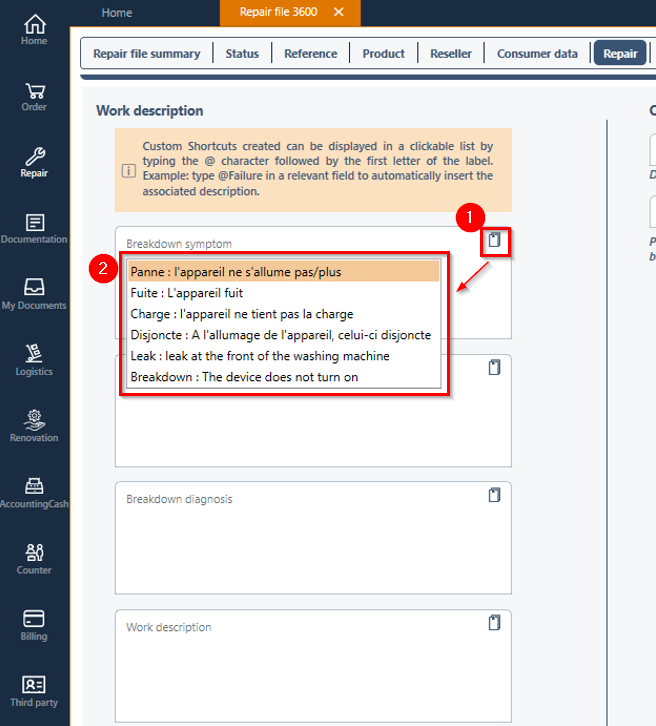
1/ Via a small icon (button) that displays the shortcuts
2/ By entering the special character "@" (which will display the created shortcuts); if it is followed by the first three letters of the shortcut label, the desired shortcut will be selected directly
Once shortcuts have been created, the "Repair" section of the service report will be displayed as follows :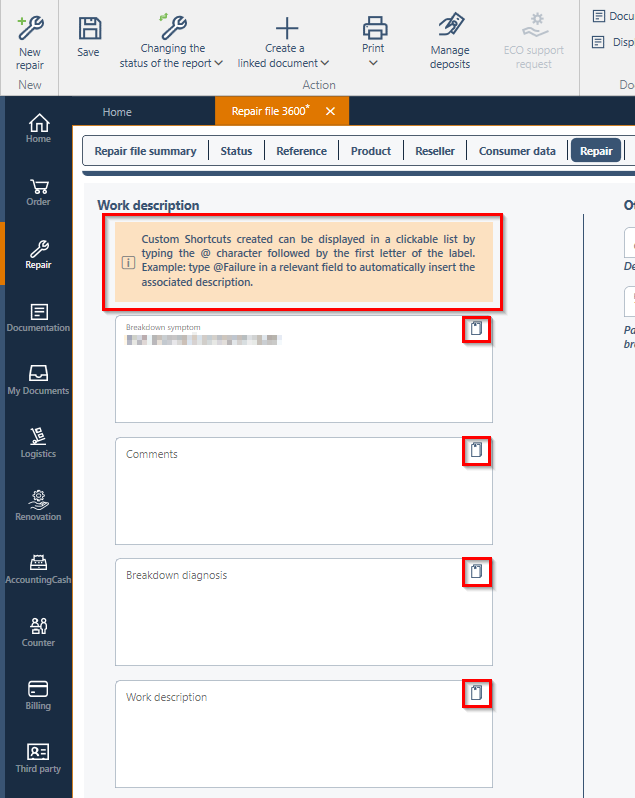
***************************************************************
1/ Integration via a small icon (button at the top right of the field box) allowing the display of shortcuts, select the desired shortcut from the dropdown list and double-click on the one highlighted in orange to integrate it :
2/ Integration via the entry of the special character "@" which will display the list of shortcuts.
If after the "@" we enter the first three letters of the shortcut label, then the shortcut will be selected from the drop-down list.
example: we enter "@bre", then the desired line will be automatically selected:
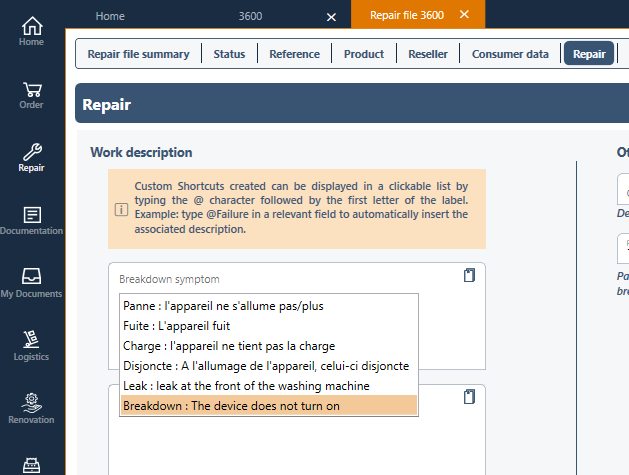
Then double-click on the highlighted line to integrate it.
Was this article helpful?
That’s Great!
Thank you for your feedback
Sorry! We couldn't be helpful
Thank you for your feedback
Feedback sent
We appreciate your effort and will try to fix the article